RSS

Category Archives: Cybersecurity

Normalizing Your Way to a Security Breach

When logging into a website recently, I was asked to verify my identity by picking the address I had on file with the business from a list that included other street addresses. Something like:

  1. 741 Juniper Parkway
  2. 59 Hawthorne Circle
  3. 331 Ushers Rd
  4. 82036 Sterling Terrace
  5. 160 Galaxy Way

I bet you could have impersonated me. There’s a flaw in that list. Do you see it?

The address pulled from their records is normalized to USPS guidelines (“Rd” for “Road”) but all the others have the street type spelled out (“Circle,” etc.). This isn’t just a formatting quirk; it’s an information leak. By applying normalization inconsistently, the developers unintentionally disclosed which option was real.

In security, the devil is in the details or, in this case, the abbreviations. Authentication systems live or die on uniformity: inputs must be normalized consistently, or attackers get clues for free. It’s a classic case of why we don’t “roll our own:” it’s incredibly easy to get it 99% right and still be 100% wrong.

 
Leave a comment

Posted by on January 8, 2026 in Cybersecurity


Tags:

Encryption (Sort of) Explained

When I discussed Password Policies, I talked about the one-way encryption used to store passwords but more generally you want to encrypt something to make it private and later decrypt it to use it. Here I’ll try to give a basic idea of how that works. Again the real math is hard but a useful understanding is not.

Substitution

A very simple example of protecting a message is a substitution cipher where each letter of a message is replaced by a different letter using a plan agreed upon by the sender and receiver of the message. You’ll find substitution in the secret decoder rings of yore and the rot13 (rotate 13) algorithm. In rot13, every letter is replaced by the one 13 letters later in the alphabet (wrapping around to A from the second half of the alphabet). A becomes N, B becomes O, and P becomes C.

A message enciphered with rot13 can be decoded either by applying rot13 again or by reversing it.

Encode: BLOCK + 13 = OYBPX
Reverse: OYBPX – 13 = BLOCK
Encode: OYBPX + 13 = BLOCK

Such simple encoding is easy to understand and implement and the message doesn’t change size when it is encoded, but substitution ciphers are easily broken based on the well-known frequency of letters in English text. Given a message of any significant size, we can look for the most frequent letter and be fairly sure that it is a substitute for E. T is the next most common letter. Then if we see “TXE” we can guess that X represents H. Clearly we need something stronger to keep your online banking safe and private.

How Keys Work

If you think of a key as something that gives you access, a computer password is a sort of key. Unfortunately, passwords are the skeleton keys of computer security. It is possible to make passwords long and complex, but then they are hard to remember or type. However, computers often excel at things people don’t do well and remembering long, meaningless strings of characters is one of those tasks. The state of the art in encryption is called Public Key Infrastructure and it takes advantage of this strength of computers.

The software that secures your session with your bank’s website manipulates very long keys to encrypt and decrypt the data flowing between your computer and the bank. The keys look something like:

ssh-rsa AAAAB3NzaC1yc2EAAAADAQABAAABAQCZ2R9o2S7n86yV4X23yG3gD/xWzZ0FdCNHPmhogm
Lh+/batLhfkXBZxR7bUrjVe0Lwr+JrdT0czQp6DGZLhjiGsAihKFTbvvyowFoLLcH34/KisTTj6k1m
BFNU/oAUyHd74SZdmnaU3qnZ6QmYylxavN67TWjcPuzepiGwvmv3dpXrPr76qKRG/+huac9fZ04Ld5
tZRUkoILOPWh5+WJ4Ak7mx5652QVWT2MloGxW+qHr3RCoUEAklXdUSkC8HsOv0np8Q4NK7UFC+l+yh
t37+AL8IOe7j9HiPovoY+OVB99F472QywjrOiDzHR27dgs8YrYJ5QqGckd8v2McS2i83 chris@chris-XPS-99-1234

Keys used in this way are generated as a pair, one which is kept private and one which can be freely shared. In the rot13 example above, the same “key” (13) was used to encode and decode. But what if you used 12 to encode and told your friend to use 14 to decode. C + 12 = O and O + 14 (wrapped around at Z) = C.

Public/private key pairs are useful because the math involved in creating and using them makes them only work going forward.

  • With a rot13-like encoding, there are two keys that may be used to decode a message (you can subtract the encoding key or add the decoding key). Public/private key pairs don’t work like that; a message encoded with the private key can only be decoded with the public key. Knowing the private key does not allow you to reverse the encryption.
  • With rot13-like encoding, you know that the two keys must add up to 26, so if I tell you to decode with 14, you know I encoded with 12. There is no such simple relationship between the keys in a public/private pair.

A few examples may help. I’ll illustrate encryption as if it was addition but the “+” is meant to represent a sort of vague “combines with.”

Start with some data (a stock report or a love letter or whatever) and a public/private key pair. Combine the data with the private key and you get what appears to be gibberish:

Data
+ Private Key
Gibberish

You can’t use the private key to get the data back from the gibberish, rather you combine the public key with the gibberish to get back the data:

Gibberish
+ Public Key
Data

So, if I want to send you a message securely, I can give you my public key, encrypt the message with my private key, and send it to you. Not only is the message in transit gibberish, but you will know that the message came from me because my public key can only decrypt a message encrypted with my private key.

Of course, if my public key is public, anyone might have it and be able to intercept the gibberish and decrypt it on their computer. There is one more property of the key pair that helps us: data encrypted with one can be decrypted with the other. Knowing that, I can do:

Data
+ My Private Key
My Gibberish
+ Your Public Key
My Gibberish for You

And when you get it you can do:

My Gibberish for You
+ Your Private Key
My Gibberish
+ My Public Key
Data

Certificate Authorities

Individuals and organizations can and do create their own keys, but most people don’t want to be bothered. It’s a truism of computer security that if the system is hard, it won’t be used.

It’s more complicated than this, but essentially the technology industry has agreed to trust a few organizations called Certificate Authorities (or CAs) to generate keys. Anyone who wants to secure their communication goes to a CA, proves their identity, and asks for a pair of keys. The CA generates the keys, sends the private key to the requestor and prepares a digital certificate that says, “This public key belongs to this organization.”

Software makers who want to provide secure communication build into their software a list of CAs. When a browser starts a session with a new website, the site sends a certificate and tells the browser which CA signed it. The browser then uses the CA’s public key to verify the signature. If it all checks out, you’re connected.

But it may not all check out. Keys expire. Partly because CAs charge for them and want recurring revenue, but also because it provides some additional level of security. And keys can be stolen or leaked. When it’s a signing certificate used by a CA, all the certificates issued by that CA are compromised and a lot of people work fast to fix the security hole.

Learning More

In this post, and when talking about passwords, I’ve taken some liberties while giving you a way to think about a complicated topic in a simple way. If you are curious about the real details, I recommend Cryptography Engineering. It is deeper and more accurate, yet still mostly avoids complex mathematics.

 
Leave a comment

Posted by on November 11, 2019 in Cybersecurity


Password Policies

While Two-factor Authentication is an important tool in keeping your accounts secure, it should definitely be used with good passwords.  News of a digital break-in is usually accompanied by advice to change your password, not only on the compromised site but on any others where you may use the same password. As I’ll explain below, the connection between sites isn’t some sort of collusion; it arises naturally from the science and technology of encryption. And while encryption relies on some complex math to work, a useful understanding can be gained with no math at all.

One-Way Encryption

Encryption manipulates data so it is no longer recognizable. Some encryption is reversible (so you can get back the original data with more processing) and some is one-way (you cannot decrypt the encrypted data). One-way algorithms are sometimes called meat grinder algorithms; hamburger may be tasty but you can’t make a steak out of it.

Among other advantages of such an algorithm is that it can be quite fast and, rather obviously, fairly secure. A common use of one-way encryption is hashing. Not to be confused with hashtags in social media, in computer science a hash is a short, fairly unique representation of another, usually larger, piece of data.

A very simple hash might just add up the parts of the input to produce a single number as the output. If we say A is 1, B is 2, etc. then to hash “ABC” we add 1 + 2 + 3 = 6. Notice that if we hash “BD” we also get 6 (2 + 4). I said that the hash value is “fairly unique” and while more complex hashes are better than this, there is always the possibility of a collision, two items that hash to the same value.

One-way encryption is useful when you want to know if two things are (likely) the same without being concerned with what those things actually are and this makes it really useful for storing passwords. When you set your password, the system hashes it and stores the result. Later, when you try to log in, the system hashes what you type and compares it to the stored hash. If the hashes match, you’re in. The better the hashing algorithm, the lower the chance of collisions, and the more certain the system can be that you supplied the same password.

Rule 1: If a website or system can tell you your password when you forget it, it isn’t storing it properly. Treat that system as if it is open and has no passwords. Better yet, don’t use that system.

Most hash functions can hash any size input and produce a hash with a uniform size. For example, SHA1 (Secure Hash Algorithm 1) always creates a 20-byte output. This makes the comparison of hashes quick and easy while still minimizing collisions. (You’d have to try roughly one septillion (1 followed by 24 zeros) random strings before finding a collision.) But because a hash function is fairly fast and can accept any size input, your password can be quite long.

On the other hand, some systems arbitrarily limit the length of your password (or, worse, ignore anything after a certain length). If the limit is eight characters, “abcd1234$” and “abcd1234@” hash to the same value and are, essentially, the same password.

Rule 2: If a website or system has an upper limit on how long your password can be, it doesn’t really take security seriously. Complain, be cautious, and consider using another system if you have options.

You’ve no doubt experienced forgetting or flubbing your password and getting locked out of a system after a few tries. That might make you ask, “Who cares if one in a gazillion inputs hash the same as my password; the bad guys can only guess three times.” That would be true if the bad guys were trying to log in the way you do. But what they actually do is break into the computer (there are various ways) and steal the list of user names and hashed passwords. Each item in that list looks something like:

User Name Password Email Address
cnelson F817710AF2D16A7F1124FE906779DCB2A2BB0ABB Chris.Nelson.PE@Gmail.com

With that data on their computer, the bad guys can guess a password, generate the hash (remember that’s fast), and compare it against the hash they stole. If it doesn’t match, they guess another. If it does match, they have something that is as good as your password, even if it is really just the result of a hash collision. They can go to the system, enter your user name and their guessed password, and then access your account in one step with no risk of lock out. (This is why some systems will alert you to a new log in to your account. If you know it wasn’t you, you can start to take steps to recover.)

Rule 3: If the system has a feature to notify you of new logins, enable it. It won’t prevent a breakin but it may allow you to minimize the damage.

I have five or six different accounts for my job. I use some of them daily and some only monthly. And don’t get me started on listing my personal passwords: my bank, car insurance, health insurance, cell phone carrier, social media, online shopping, etc. There is a temptation to use the same password on all the systems so I don’t have to remember so many but if any of those systems get compromised and the bad guys guess my password, they can at least try that password on other systems with some chance of success.

The problem is this: encryption is hard. It’s a truism in software that you should never try to develop your own security software. As a result, the most secure, well-managed systems use one of several reliable methods to hash and store passwords and the hash of your password on one site may very well match the hash on another.

Rule 4: Use a different password on every system, at least every important system. I’m not sure how much I’d care if someone used my Netflix or Spotify account.

You may wonder what “guess a password” means? First, security researchers have compiled lists of common passwords and bad guys will start with those and hope they get lucky. Second, passwords are often made of a few words and a few digits like “pizzalover12” or “bestgrandma2007.” Here linguists have helped the bad guys by compiling lists of common English words; you are much more likely to incorporate “zoo” than “xeric” in your password.

Rule 5: Avoid common words and phrases in your passwords.

Common passwords are common because they are easy to remember and/or type. Common words are easy to type because they are used frequently. So how do you remember many unique, uncommon passwords and not mistype them so often you lock yourself out? My best advice is don’t remember them and don’t type them.

In the Google software ecosystem, the Chrome browser and the Android operating system have features to suggest “strong” passwords, remember them for you, and fill them in when you visit a site or use an app again. This does mean that if Google is ever compromised all of your passwords are exposed at one time (though I hope and assume they use strong two-way encryption to store them).

A Google solution doesn’t help much if you use Firefox and Android or Chrome and an iPhone or some other combination of products. There are password manager programs for computers and phones (some free, some paid) that give you independence from a specific supplier. Some store your list of sites, user names, and passwords on your own computer or phone so you control it. I have used KeePass for years for just this reason.

Rule 6: Use a password manager to store your various passwords.

So now you know why you need long, unique passwords on all the systems you use. Go get yourself a password manager and start using it.

Resources

KeePass: https://keepass.info/download.html (includes links to compatible Android and iPhone apps)

PC Magazine’s roundup of the best password managers: https://www.pcmag.com/roundup/300318/the-best-password-managers


Two-Factor Authentication

Two-Factor Authentication

(or How to Keep Your Facebook Account from Getting Hacked)

It seems that not a month goes by without one of my Facebook friends posting something like, “If you see a video from me, don’t click on it. My account was hacked.” We live in dangerous times — Sony and Equifax and so many other systems are compromised — but there are fairly easy tools we can use to at least make the bad guys’ lives harder. One of them is two-factor authentication.

A Password is Not Enough

Passwords are a venerable computer security measure, but they have their limitations. Whether your password is long or short, simple or complex, computers can run through many possible passwords in a second and “brute force” their way into your account. Enter multi-factor authentication.

Authentication is the process of proving to a computer system that you are who you say you are and reasonably secure systems require more than just a password to authenticate users. Each thing you must provide to the system to prove your identity is called a “factor,” thus multi-factor authentication requires a password and something else. A common combination is “something you know and something you have.” You know your password but what do you have that Facebook (or Twitter or your bank) knows about? We all have our phones!

A common — though imperfect — implementation for two-factor authentication (2FA) is to tell the system or website your phone number. When you log in with your password, the system sends you a text message with a unique code, for only one use, which you then enter into the system or site. The site now knows that (1) you know your password, and (2) you have your phone and can reasonably believe you are who you claim you are.

That can get a bit tedious so there is often another step. After you enter the code, you can tell the site, “Remember this computer is mine, too.” The next time you log in, you provide your password and your computer provides something tied to that earlier login. Now the site knows that (1) you know your password, and (2) you have the computer you previously said is yours. Of course, when you get a new computer, borrow a friend’s, or go to an Internet cafe, the site doesn’t recognize the computer and you get a text message. More importantly, when a bad guy in Elbonia guesses your password, you get a text message, too, and he doesn’t get to hack your account!

Go set up 2FA on all your social media sites. Do it now. You can thank me later.

Resources

Here’s how to set up two-factor authentication on several popular sites.

Amazon: https://www.amazon.com/gp/help/customer/display.html?nodeId=201962420

Facebook: https://www.facebook.com/help/148233965247823

Twitter: https://help.twitter.com/en/managing-your-account/two-factor-authentication

 
1 Comment

Posted by on September 23, 2019 in Cybersecurity


Tags: , ,

Wi-Fi Hygiene

When you see a sign promising “free Wi-Fi” do you think, “Great, now I don’t have to burn my data plan”? If that’s all you see, you should be thinking, “That’s not safe!” In the next few paragraphs, I’ll try to explain why.

Pick the Right Network

20150522_062724

As you approach the gate, you see a sign that says the airport has free wireless internet. You have some time before your flight so you open open the Wi-Fi network settings on your phone, find an access point named “Free Airport Wi-Fi” and you connect. But wherever there is a cluster of businesses, there is a storm of Wi-Fi signals and it’s often difficult to tell which one to use. Maybe you should pick “Airport Wireless” or “TWC Guest Wi-Fi.” It may be that all the signals come from legitimate services but it isn’t hard for someone to set up a fake access point and listen in on your searches, or music streaming, or email exchanges, or banking. It’s called a “man in the middle attack” and it can be tough to detect.

What happens is you connect to the fake access point and it connects to some other internet service. Your network traffic is received by the Bad Guy, recorded or processed and also forwarded to the intended recipient. Responses go by the same route in reverse. Your passwords and other sensitive information are no longer private.

Rule 1: Only connect to Wi-Fi provided by someone you trust who provides you the name.

Secure the Connection

img_20180418_121447.jpg

You get to your doctor’s office or hair salon and there’s a sign that tells you the name of the Wi-Fi access point they provide for their patients or customers. That’s a big step forward from “Free Wi-Fi Available” but is it enough? Not really. The connection between your phone or computer and the Wi-Fi access point is radio signals flying through the air and anyone who can receive them can eavesdrop on your network usage. The answer to that is to encrypt the connection and that is done by providing a password or key. The cryptography is beyond the scope of this post but, essentially, the Wi-Fi protocols use the key (which is the same for everyone) and some other information to make a different encrypted channel for each user. As a result, even though someone else knows the password and can receive your signals, those signals are just gibberish to them.

Rule 2: Only use Wi-Fi when it is secured with a password provided by someone you trust.

A Password is Not Enough

null
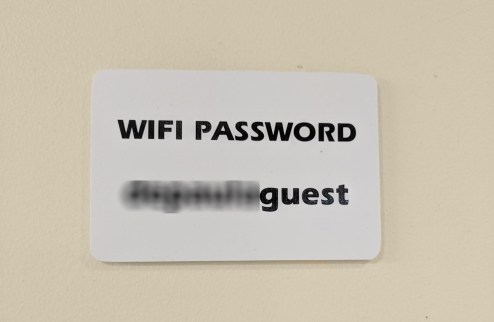
Don’t be lulled into a false sense of security if you see only a password posted.  It might be okay if there is only a single access point available but more likely you’ll see many. While one may be legitimate, any other might be a hacker who has set up access with the same password and is waiting to steal your data.
null-e1566133304167.png
Enjoy Your Coffee

20150523_135103

You take your latte and your laptop and find a table at your favorite coffee shop. There’s a sign on the wall telling you the name of their Wi-Fi access point and the password you need to connect. Is it safe? Likely. You and your host have done all you can to make your wireless networking as secure as practical. Their router could be infected with malware, your bank or email provider may have been hacked, or any number of other things beyond your control could still make your digital life difficult but go ahead. Connect and log on using your strong password. You do have a strong password, right? We’ll leave that discussion for another day.


Rules for Network Providers

Providing free Wi-Fi to your customers is a service. But please do it right and don’t put them and their information at risk. It’s not hard.

  1. Give your access point a clear, specific name. Don’t be generic like “Free Wi-Fi” and don’t accept the default name that your router provides.
  2. Enable the highest level of Wi-Fi security your router provides. Today that’s likely WPA2 but WPA3 is coming.
  3. Set a clear password for your access point. Unlike login passwords, Wi-Fi passwords don’t need to be complex or obscure.
  4. Clearly display the name of the access point and the password on a professional-looking sign. A wrinkled piece of copier paper might have been taped up by a visiting Bad Guy.
  5. Don’t make me land on an advertising page when I connect. (OK, that last one is just my personal pet peeve. But really. Just cut it out.)
 
Leave a comment

Posted by on August 19, 2019 in Cybersecurity